.jpg)
Duplicate records are a silent threat in any nonprofit CRM. In Salesforce NPSP, they fragment donor histories, distort fundraising reports, and lead to embarrassing communication mistakes — like sending the same appeal twice to one donor under two slightly different names.
This guide walks through how to detect, prevent, and merge duplicate donor records in Salesforce NPSP using native tools, plus the data entry standards that stop duplicates from appearing in the first place.
1. Why Duplicate Records Appear in Salesforce NPSP
Most duplicates trace back to one of four sources:
- Team members manually create new donor records without searching first
- Data is imported from spreadsheets, donation forms, or third-party tools with inconsistent formatting
- Donors give slightly different versions of their information over time — Michael on one form, Mike on another, Elizabeth in 2023 and Eliza in 2024
- Two staff members enter the same donor on the same day, each using a different format
These look harmless individually. At scale, they break donor analytics: you can't reliably calculate first donation date, total lifetime giving, or repeat-donor rates when the same person lives in three records.
2. Set Up Matching Rules and Duplicate Rules in Salesforce
Salesforce catches duplicates before they're saved using two complementary mechanisms and you need both configured for the system to work.
- Matching Rules define which fields to compare and how to compare them. Salesforce uses both exact matching (e.g.,
email = email) and fuzzy matching that normalizes values — for example, "Bob" and "Robert" can match if you configure the rule that way.The standard NPSP installation includes pre-built matching rules for Contacts, Accounts, and Leads. For most nonprofits, the standard rules are a reasonable starting point. Customize them once you see what duplicates slip through.
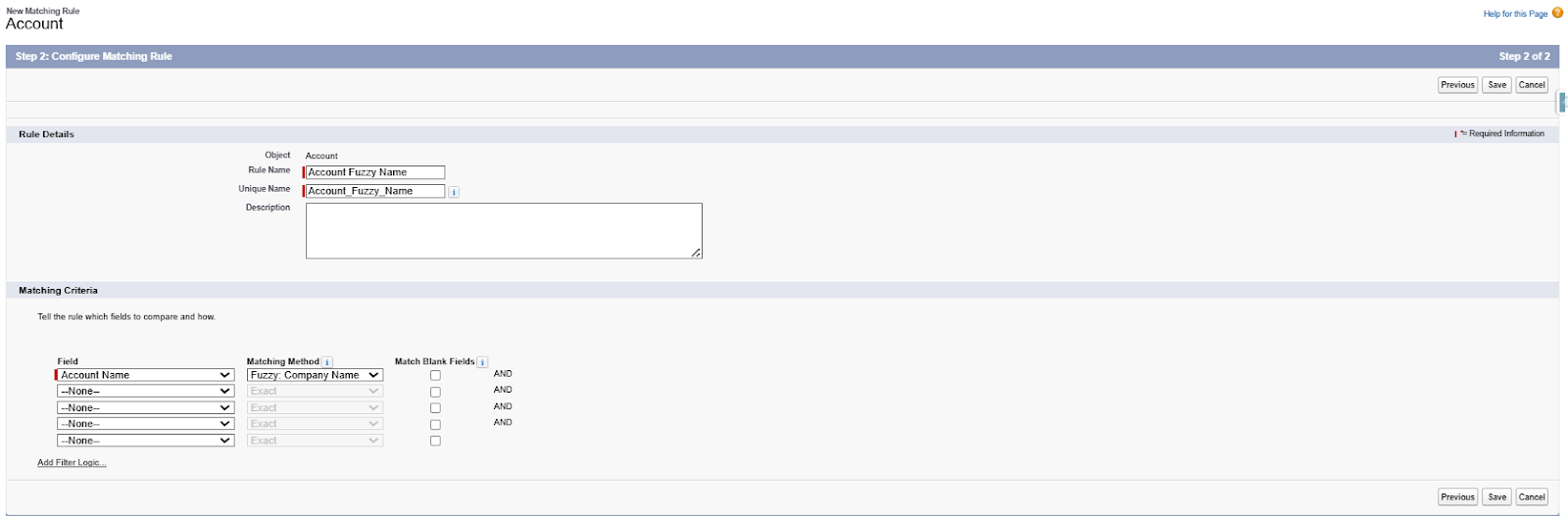
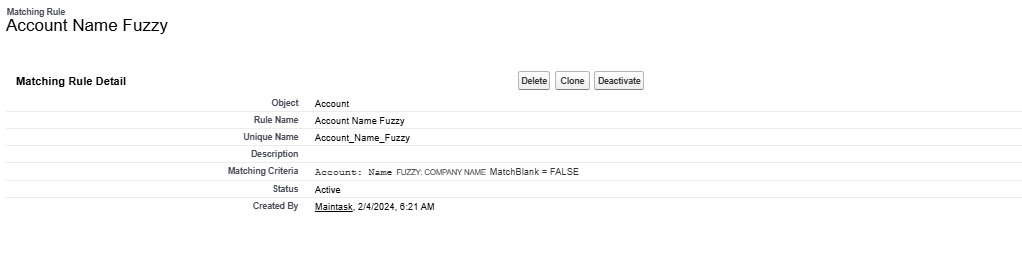
- Duplicate Rules define how the system responds — whether to allow, block, or alert users when a duplicate is detected.
A duplicate rule defines what happens when a user views a record with duplicates or starts creating a duplicate record. Salesforce provides standard duplicate rules for business and person accounts, contacts, and leads. You can also create duplicate rules.
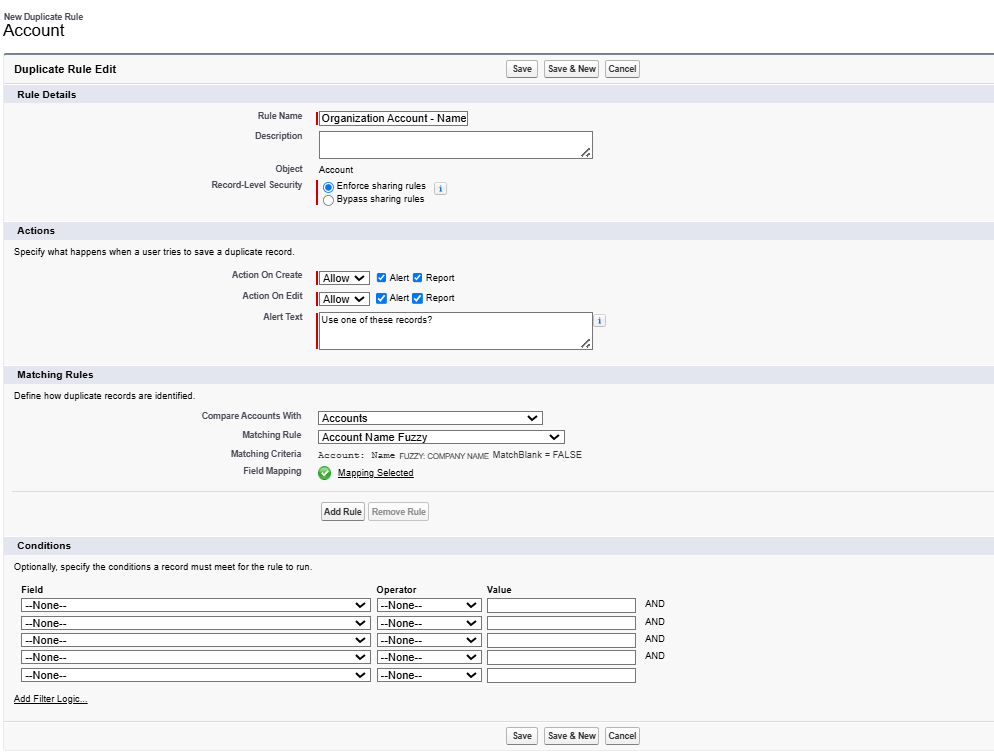
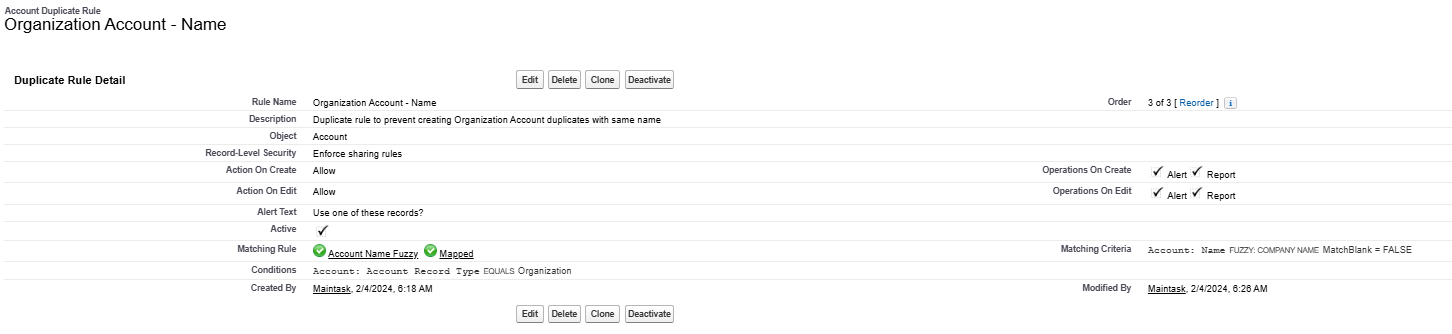
Set up rules for Contacts, Accounts, and Leads to ensure duplicates are flagged during both manual entry and imports.
3. Configure Record Pages to Surface Alerts
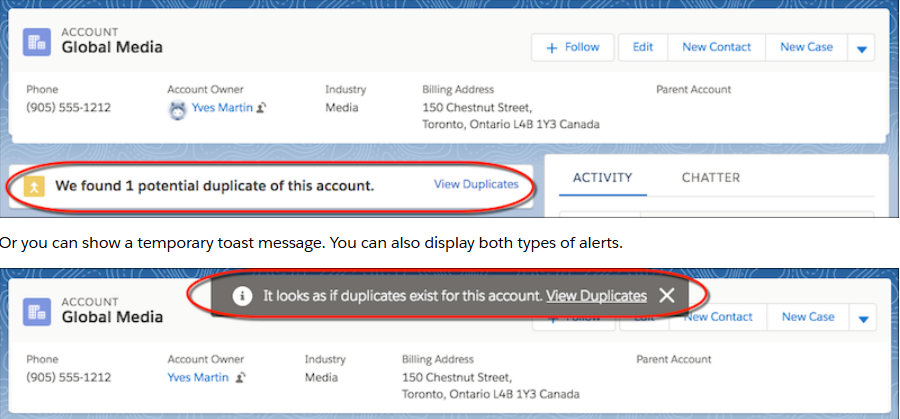
Once rules are active, add the Potential Duplicates component to Lightning record pages (Contacts, Leads, Accounts). This enables:
- Real-time alerts directly on record views
- Visibility into matching records with an option to “View Duplicates”
This keeps users informed without interrupting workflows.
4. Merge Duplicates Effectively
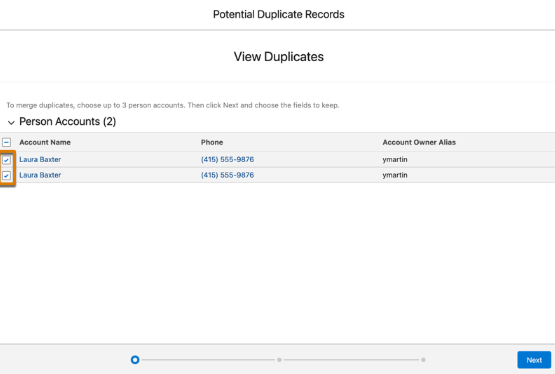
When duplicates are confirmed:
- Select up to three records to merge
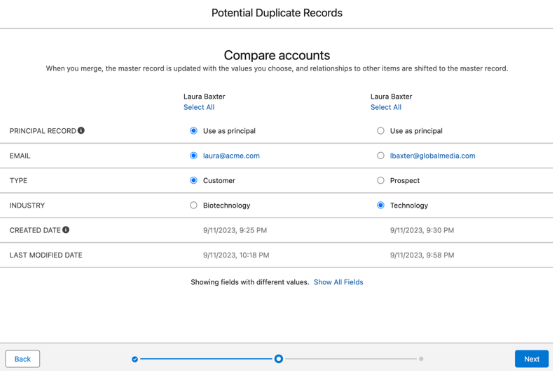
- Choose a primary record to retain ownership and relationships
- Review fields and select which values to keep
Always review data carefully before merging, and avoid batch merges without manual checks.
5. Data Entry Standards That Prevent Duplicates
Detection and merging are reactive. Prevention is where you actually save time. Four standards do most of the work.
Use full legal names
Inconsistent naming is the #1 source of duplicates. Always enter the donor's full legal name as it appears on official records. Avoid nicknames and informal variants in the primary name field.
Common nickname pairs that caus duplicates:
- Katherine vs. Kathy / Katie / Kate
- Elizabeth vs. Liz / Beth / Eliza
- Jonathan vs. Jon / John / Johnny
- Rebecca vs. Becky / Becca
If a donor prefers a nickname for communications, store it in a dedicated Preferred Name field. Keep the legal name consistent in the primary field — it's what your matching rules use.
Maintain consistent address formatting
Salesforce treats address strings as text. "245 Main Street" and "245 Main St." are different values to a matching rule.
Pick one format and enforce it across all records:
- ✅ 245 Main Street, Boston, MA, USA
- ❌ 245 Main St., MA or USA, Boston, Main 245
Avoid unnecessary abbreviations
Standardize on full forms across all common fields:
- Street not St.
- International not Intl.
- Foundation not Fdn.
Full forms improve searchability and make matching rules more reliable.
Make a record search mandatory before creating
Before any new Contact is created, the user should search the existing database first. Build this into:
- New employee onboarding
- Volunteer training before they touch the CRM
- Standard operating procedures for gift entry
Salesforce's search bar on the Contact tab is the simplest tool but for high-volume gift entry, consider building a custom Lightning component or a screen flow that forces the search step.
6. Run a Monthly Duplicate Review (Data Steward Workflow)
Automation catches most duplicates, but not all. A monthly review by a designated data steward closes the gap.
The basic workflow:
- Run a report of Contacts created in the last 30 days
- Sort by similar names, emails, or addresses
- Spot-check pairs that look like potential duplicates
- Merge confirmed duplicates and document the decision in a shared log
- Adjust matching rules if you keep finding the same type of miss
This task takes 30–60 minutes per month for a typical nonprofit org and saves hours of fundraising-report cleanup later. Assign it to one person shared ownership usually means no one does it.
7. Common Pitfalls: Why NPSP Misses Some Duplicates
Even with rules in place, duplicates slip through. Four scenarios are responsible for most of the misses.
Custom fields aren't included in matching rules
If your org uses custom fields like Alternate Email, Maiden Name, or Spouse Name, duplicates may not be detected when those fields are the only matching signal.
Fix: review matching rules quarterly and add custom fields that carry identity signal — alternate email is the most common example.
Imported data bypasses duplicate rules
Bulk imports through Data Loader, third-party integrations, or the API can bypass duplicate rules unless you explicitly configure the import to honor them. This is the most common cause of "where did all these duplicates come from" disasters.
Fix:
- Treat every import like manual entry — clean and standardize the file before upload
- Run a duplicate check on the source file in Excel or a tool like DemandTools before importing
- After import, run a Contact report sorted by created date and scan for new duplicates
Household vs Contact confusion
In NPSP, Households and Contacts are distinct objects. A donor entered as a new Household when their Contact already exists creates a perceived split identity the data is technically not a duplicate, but functionally it is.
Fix: train all users on the difference between Household Account and Contact creation. Use NPSP's automatic Household creation rather than manual.
International data inconsistencies
Global donor data varies — John Smith (UK convention) vs. Smith, John (German convention), or addresses with different country-formatting standards.
Fix: for international records, normalize values on import (last name in the right field, country in the country field, not embedded in the street). Consider region-specific matching rules if you have significant international donor populations.
Frequently Asked Questions
What's the difference between Matching Rules and Duplicate Rules?
Matching Rules define how Salesforce compares records which fields and which logic. Duplicate Rules define what happens when a match is found allow, alert, or block. You need both for duplicate management to work. Matching Rules without Duplicate Rules just sit there; Duplicate Rules need a Matching Rule attached.
Can I undo a merge in Salesforce NPSP?
Not fully. Salesforce keeps the surviving record and deletes the other(s), but the deleted records can be restored from the Recycle Bin within 15 days. Restoring them does not undo the merge — it just brings back the duplicate. Field changes made during the merge cannot be reverted automatically. Always review carefully before confirming.
Does Data Loader bypass duplicate rules?
By default, Data Loader can bypass duplicate rules unless you configure it to honor them. Always check the import settings, and run a duplicate scan on your source file before uploading. This is the single biggest cause of mass-duplicate incidents in NPSP.
How do I find duplicates that NPSP didn't catch?
Run a Contacts report sorted by name, email, or phone, and scan for near-matches. For larger orgs, use the Duplicate Record Sets object — Salesforce logs every potential duplicate it has flagged, even ones users dismissed. Third-party tools like DemandTools, Apsona, and Cloudingo are worth considering once you outgrow native tools.
Should I use a third-party duplicate tool or stick with native NPSP?
Native NPSP tools cover the basics well. Third-party tools earn their cost when you have: (1) more than 50,000 Contact records, (2) frequent bulk imports from external systems, or (3) compliance requirements for documented data quality processes. Below that scale, native tools plus a monthly review are usually enough.
Why Clean Donor Data Matters
Duplicate records aren't just a tidiness problem. They damage donor trust (the same appeal sent twice), distort reporting, and make it impossible to answer basic fundraising questions.
When the same donor exists in multiple records, you cannot reliably determine:
- When their first donation was made
- Which donation was the largest or smallest
- Total lifetime giving
- Repeat donor vs lapsed donor classification
- Major gift potential based on giving patterns
Each of these metrics drives operational decisions and fundraising strategy. Fragmented donor records make every decision worse.
Clean data doesn't happen by accident. Set up Matching Rules and Duplicate Rules. Add the Potential Duplicates component. Enforce data entry standards. Run a monthly review. Your CRM is only as powerful as the data inside it.
-





.png)

.png)


