.webp)
Salesforce user access management is one of the most important responsibilities for any Salesforce administrator. It affects security, user productivity, data quality, reporting, compliance, and the long-term maintainability of your Salesforce org.
When access is managed well, users can see and edit the data they need to do their jobs. At the same time, sensitive information stays protected, accidental changes are reduced, and admins can clearly explain why each user has the access they have.
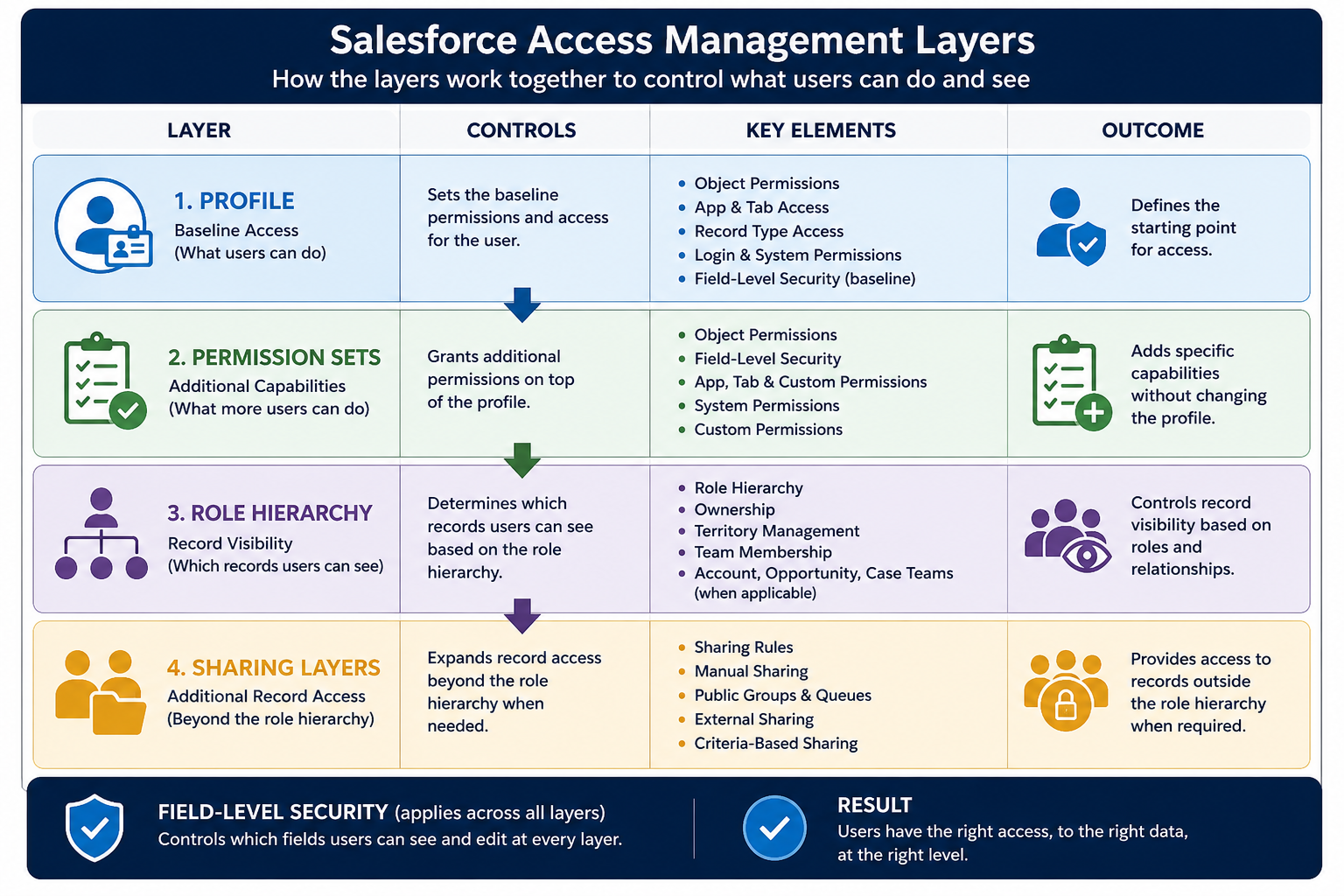
Salesforce provides several tools to support this, including profiles, permission sets, permission set groups, roles, sharing rules, and field-level security. Each tool controls a different layer of access. Understanding how these layers work together is essential for building a secure and scalable Salesforce org.
Salesforce user access management is the process of controlling who can log in, what users can do, which records they can see, and which fields they can view or edit. In Salesforce, access is managed through profiles, permission sets, permission set groups, roles, sharing rules, teams, manual sharing, and field-level security. A clean access model gives users enough access to do their work without exposing sensitive data or creating unnecessary admin risk.
Why Salesforce User Access Management Matters
User access is not only a technical setup task. It is also a business control.
Every Salesforce org contains valuable data. This can include customer records, donor history, sales pipeline, support cases, campaign performance, contracts, or internal operational data. The more people can access or edit this data, the greater the risk of mistakes, privacy issues, and inconsistent processes.
A good access model answers three basic questions:
Who can log in?
Which records can they see or edit?
Which fields and features are available to them?
These questions become more important as the organization grows. In a small team, access may be managed informally. But as more departments, regions, or programs start using Salesforce, access requests become more complex. Without a clear model, temporary exceptions often become permanent. Over time, this creates security debt. Users keep permissions they no longer need. Former team structures remain reflected in role hierarchies. New admins inherit a setup that works technically but is hard to understand.
Strong Salesforce user access management prevents this by making access intentional, documented, and reviewable.
A good Salesforce access model follows the principle of least privilege: users should receive the minimum access they need to do their work, and no more. This does not mean making Salesforce hard to use. It means avoiding broad permissions as a shortcut and granting extra access intentionally through permission sets, permission set groups, sharing rules, or documented exceptions.
Profiles: The Baseline for Access
Every Salesforce user must have exactly one profile. A profile defines the user’s baseline access, including object permissions, app access, tab visibility, record type access, login settings, and some system permissions.
Salesforce describes profiles as a way to determine what users can do in Salesforce, including access to objects, fields, apps, and other features. You can read more about profiles in the official Salesforce documentation.
The important word is baseline. Profiles should not be used for every small access variation. A common mistake is creating too many profiles. For example, an organization might have profiles such as Sales User, Senior Sales User, Sales User With Export, Sales User With Campaign Access, and Sales User With Special Reports. This quickly becomes difficult to maintain.
A cleaner approach is to keep profiles broad and stable. Use them for the minimum access a category of users needs. Then use permission sets and permission set groups to grant additional access.
For example, a nonprofit might use one baseline Fundraising User profile. Additional permissions for campaign management, data import, or reporting can then be assigned through permission sets. This makes the access model easier to understand and easier to update when a user changes responsibilities.
Permission Sets and Permission Set Groups
Permission sets are one of the most useful tools for scalable Salesforce user access management. They are ideal for access that is specific, modular, or temporary. A permission set grants additional access beyond the user’s profile, and unlike profiles, users can have many permission sets.
Salesforce describes permission sets as a way to grant permissions and access settings to users without changing their profiles. More information about permission sets is available in the official Salesforce documentation.
Permission set examples include:
Marketing campaign management
Data import access
Case escalation access
API access
Custom app access
Permission set groups allow admins to bundle related permission sets together. This is useful when a role requires several permissions that are usually granted at the same time
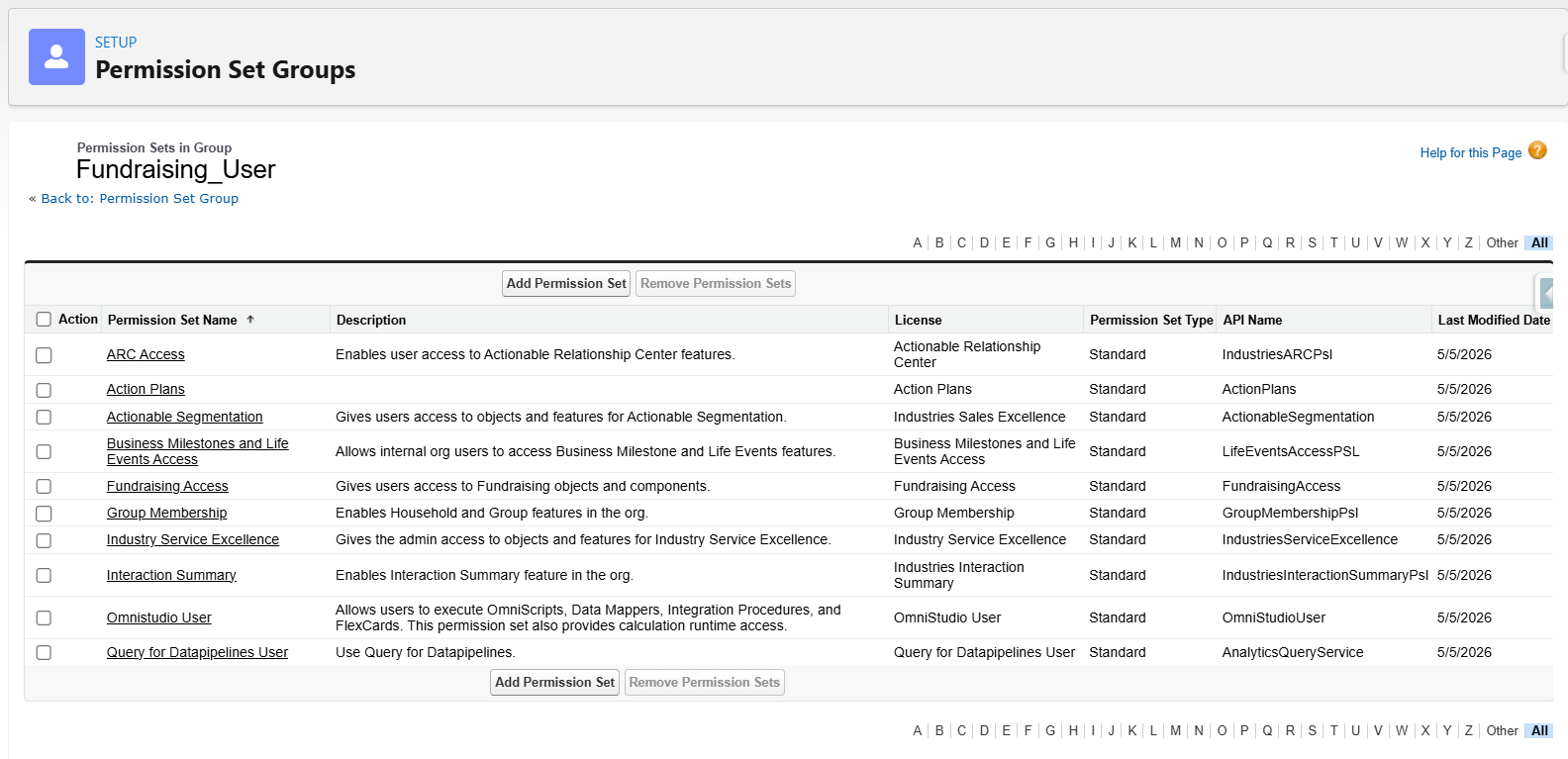
For example, a Marketing Operations permission set group might include campaign access, email template access, lead import permissions, and campaign reporting permissions.
The advantage is clarity. Instead of assigning many separate permission sets to each user, the admin assigns one permission set group. If the role changes later, the group can be updated centrally.
Before changing roles or sharing rules, start with Organization-Wide Defaults. OWD defines the baseline record access for each object, such as private, public read-only, or public read/write. Roles, sharing rules, teams, and manual sharing usually expand access from that baseline.
This matters because roles cannot fix an access model that is too open at the OWD level. If records are already public read/write, adding a role hierarchy will not make them more secure. A clean Salesforce sharing model starts with the right default access, then opens records only where the business needs it.
Roles and Record Visibility
Profiles and permission sets control what users can do. Roles help control which records users can see.
The role hierarchy is part of Salesforce’s record-level sharing model. It is often used to give managers visibility into records owned by users below them in the hierarchy.
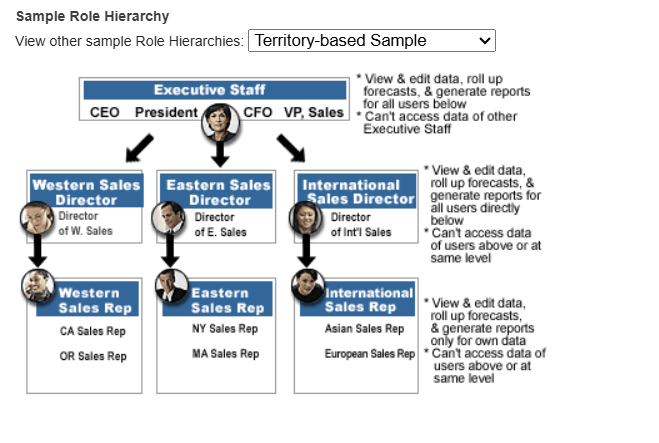
For example, a sales manager may need access to opportunities owned by sales representatives on their team. A fundraising manager may need visibility into donor records managed by fundraisers.
Roles do not grant object permissions by themselves. A user still needs object-level access through a profile or permission set. The role hierarchy then affects which records are visible within that object.
This distinction is important. If a user cannot access the Opportunity object at all, moving them higher in the role hierarchy will not solve the problem. If the user has access to the object but cannot see certain records, then roles, sharing rules, teams, or manual sharing may be involved. A good role hierarchy should be easy to explain and maintain.
Field-Level Security
Even when users need access to an object, they may not need access to every field.
Field-level security controls whether users can view or edit specific fields. This is especially important for sensitive data such as financial details, donor preferences, personal information, internal scoring fields, or confidential notes.
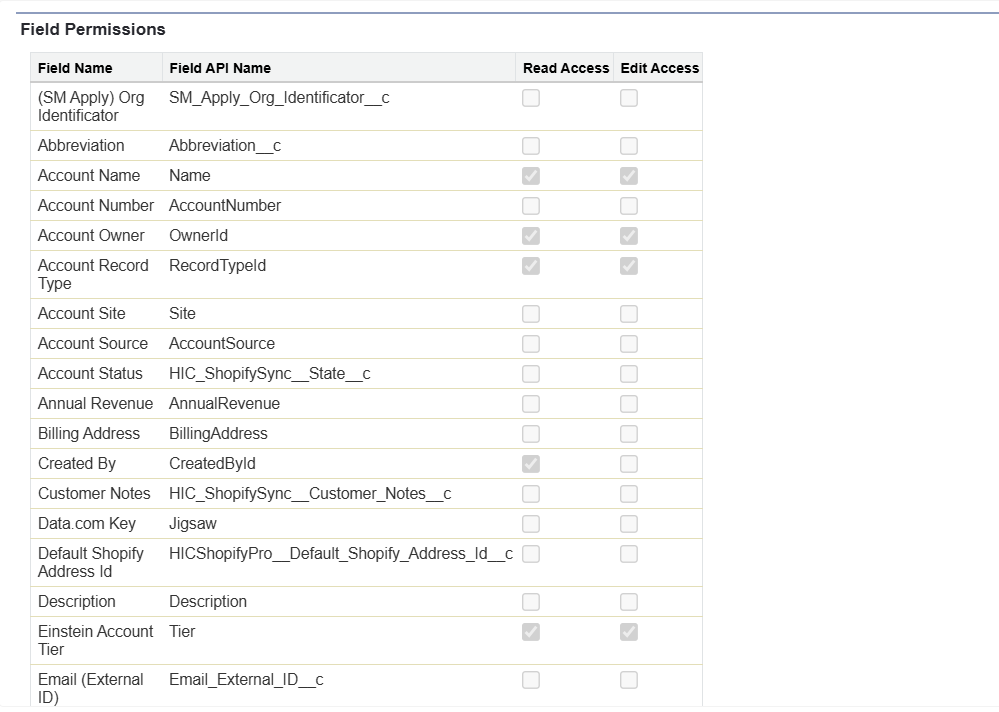
For example, a support user may need access to Account records but should not see financial risk ratings. A fundraising assistant may need to update donor contact details, but should not edit lifetime giving calculations.
Field-level security should be reviewed whenever new fields are created. Removing a field from a page layout is not enough. Page layouts control what appears on the record page, but they do not fully secure the field across reports, list views, API access, or other interfaces. A good practice is to decide on field visibility when the field is created. Ask who needs to view it, who needs to edit it, and whether the field contains sensitive information.
Sharing Rules, Teams, and Manual Sharing
Salesforce includes several tools for record sharing beyond the role hierarchy:
- Sharing rules are useful when records need to be shared automatically based on ownership or criteria. For example, high-value opportunities could be shared with a revenue operations team, or donor records from a specific region could be shared with a regional fundraising team.
- Account teams, opportunity teams, and case teams are useful when several people collaborate on specific records. They are best when access depends on involvement in a record rather than membership in a broad department.
- Manual sharing can help in special cases, but it should be used carefully. Too much manual sharing becomes hard to audit and maintain. It is better for occasional exceptions than for core business processes.
The best sharing method depends on why the access is needed. If access is predictable and repeatable, use an automated sharing rule. If it is collaborative and record-specific, teams may be better. If it is rare and temporary, manual sharing may be acceptable.
Documentation
Documentation is important. Each profile, permission set, and permission set group should have a clear name and description.
Avoid vague names such as “Extra Access,” “Manager Permissions,” or “Temporary Access.” Better names include:
- Donation Import Access
- Campaign Manager Permissions
- Finance Field Edit Access
Clear naming reduces dependency on memory and makes the org easier for future admins to maintain.
Common Access Management Mistakes
These access problems appear frequently in Salesforce orgs:
- Granting powerful permissions too broadly - Permissions such as “Modify All Data” and “View All Data” should be limited to trusted admins and specific technical users. They should not be used as quick fixes.
- Creating too many profiles - Profiles should define baseline access, while permission sets should handle additional permissions.
- Forgetting to remove access when users change roles - Access reviews should be part of onboarding, offboarding, and internal role changes.
- Assuming page layouts equal security - Page layouts affect the user interface, but field-level security controls whether users can truly access a field.
- Not documenting exceptions - Exceptions are sometimes necessary, but they should be explained and reviewed later.
- Not testing access from the user’s perspective - Admins often have broad permissions, so they may not see what a standard user sees. Testing with realistic access helps identify issues before users report them.
- Not reviewing integration users separately - Integration users often hold API access, broad object permissions, or long-lived credentials. Each integration user should have a clear owner, documented purpose, minimum required permissions, and a review schedule.
- Letting permission sets become the new profiles - Permission sets should stay modular and clearly named. If one permission set contains unrelated access for reports, objects, fields, integrations, and admin tools, it becomes just as hard to maintain as an overloaded profile.
How Often Should Access Be Reviewed?
Access should be reviewed regularly. For many organizations, quarterly or semi-annual reviews are a good starting point.
During an access review, check:
- Inactive users
- Users with admin-level permissions
- Users with “Modify All Data” or “View All Data” permissions
- Permission sets that are assigned to many users
- Unused profiles
- Users with access outside their current job function
- Public groups and queues
- Sharing rules that no longer match the business process
Salesforce’s Trailhead module on Data Security is a useful resource for understanding how these access layers work together.
User access management should also be reviewed alongside new platform features and admin capabilities. Salesforce releases often introduce security updates and admin improvements that can affect how teams manage permissions, automation, and data visibility. To stay up to date, you can also explore Maintask’s summaries of the Salesforce Spring ’25 Release and Salesforce Winter ’25 features for admins and app builders.
Conclusion
Salesforce user access management is not a one-time setup task. It is an ongoing admin responsibility that keeps your org secure, scalable, and easier to maintain.
A strong access model gives users the data and tools they need without giving everyone more access than necessary. Profiles define the baseline. Permission sets and permission set groups add flexibility. Roles and sharing tools control record visibility. Field-level security protects sensitive data. Regular reviews keep everything clean over time.
If your Salesforce org has grown through years of exceptions, duplicated permissions, or unclear access rules, it may be time for a structured access review. Maintask can help assess your current setup, simplify your permission model, and design a Salesforce access structure that supports both security and usability.





.png)

.png)


