
Why This Integration Matters
Mailchimp is a widely used email marketing platform that helps teams send newsletters, announcements, and basic campaigns without complex setup. It’s especially popular among small businesses and nonprofits thanks to its ease of use and flexible pricing. At the same time, many of these organizations rely on Salesforce as their system of record for contacts, donors, customers, or leads. Without integration, this often leads to manual exports, outdated email lists, and limited visibility into how audiences engage with marketing emails.
The native Mailchimp for Salesforce integration bridges this gap. It allows Salesforce Admins to synchronize CRM data with Mailchimp audiences, keep subscriber information aligned, and surface email engagement directly on Salesforce records. The result is less manual work, cleaner data, and better collaboration between marketing and Salesforce users.
Prerequisites Before You Start
Before installing the connector, confirm a few things on both sides of the integration. Missing one of these is the most common reason setups stall during configuration.
- Salesforce edition with API access. The connector requires an API-enabled edition — Enterprise, Performance, Unlimited, or Developer. Professional Edition requires the API add-on.
- System Administrator or equivalent permissions in Salesforce to install the managed package, assign permission sets, and modify Lead and Contact page layouts.
- Manager-level access in Mailchimp for the user who will authenticate the connection. Lower roles will not see the OAuth approval screen.
- A Mailchimp audience already created. The connector connects to one audience at a time, so decide upfront which audience this Salesforce org should sync with.
- Clean email data in Salesforce. Mailchimp deduplicates by email, so duplicate or invalid emails in Salesforce will create inconsistencies in the synced audience.
What the Native Integration Does
Once installed, the native connector adds a Mailchimp app inside Salesforce and custom components that can be added to Lead and Contact layouts so users can see subscriber status and campaign engagement without switching systems. You connect your Mailchimp account via the MC Setup tab, authenticate via OAuth, and choose which audience to sync. The integration lets you map Salesforce fields (like Email, First Name, custom demographic fields) to Mailchimp merge fields, enabling data to flow both ways: Salesforce → Mailchimp for outbound audiences, and Mailchimp → Salesforce for subscriber data and activity.
Admins can also use Member Queries to define which Salesforce records go into Mailchimp (e.g., filtering by field values or Campaign membership). Scheduled queries can run daily or on demand, keeping lists fresh based on CRM logic.
Step-by-Step Integration Guide
1. Install the Mailchimp for Salesforce App
Mailchimp for Salesforce on AppExchange — search for “Mailchimp for Salesforce” on the AppExchange and install it into your Production org (with API-enabled edition like Enterprise or Performance). After installation, the Mailchimp app appears in the App Launcher.
2. Assign Permissions
In Salesforce Setup, assign Mailchimp Admin and Mailchimp User permission sets to the right users so they can configure and view Mailchimp data.
3. Connect Mailchimp
Open MC Setup and click Connect to Mailchimp. Authenticate with your Mailchimp credentials (requires Manager-level access). Once connected, choose your audience and enable syncing.
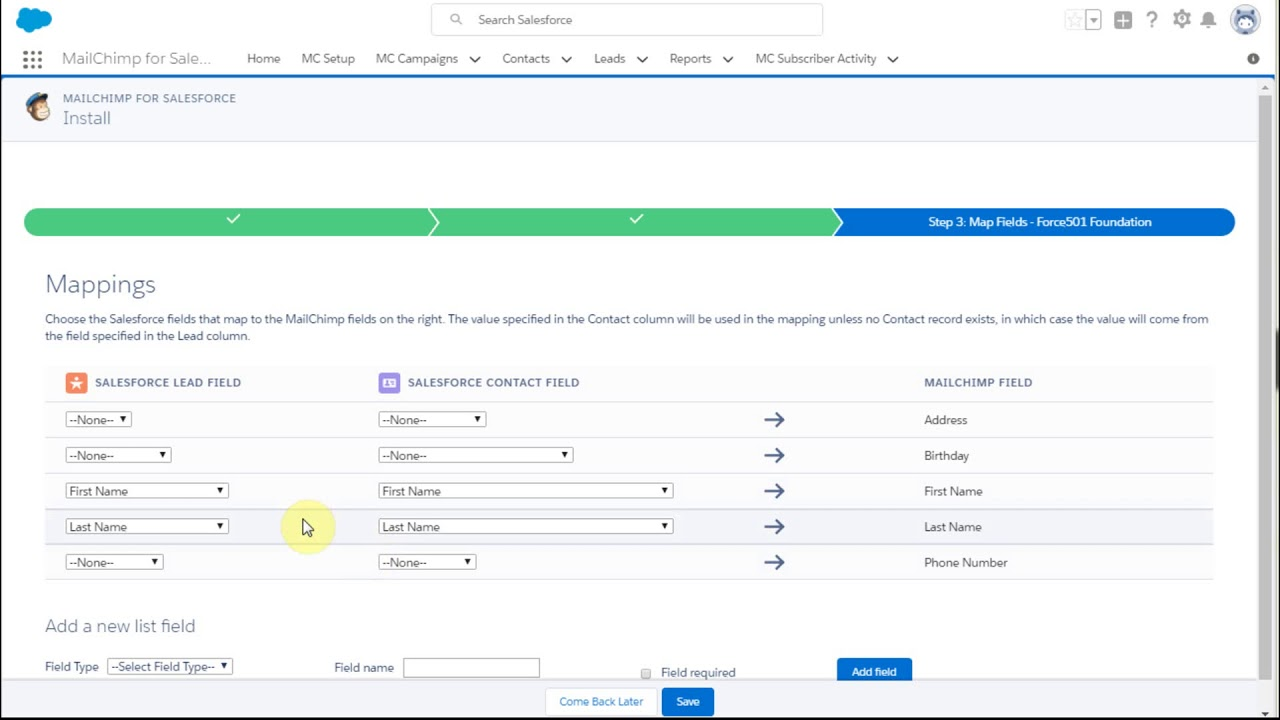
4. Map Fields
Match your Salesforce fields to Mailchimp audience fields. Focus on key fields like Email, First Name, and any segmentation fields marketing plans to use (tags, regions, etc.). Save your mappings before syncing.
5. Sync and Use Queries
Turn on data sync and, if desired, set up Member Queries to control which Salesforce records (Leads/Contacts) go into your Mailchimp audience. Preview and schedule these queries to keep Mailchimp updated automatically.
Key Limitations to Know
While useful for many teams, this native integration has important constraints:
- One Mailchimp account per Salesforce org: You can only connect a single Mailchimp account and audience at a time.
- Sync timing: Updates run on scheduled intervals rather than real-time. Most sync operations complete on the next schedule rather than instantly (e.g., audience syncs and query runs on set schedules).
- Field limits: Mailchimp audiences have a field limit (standard plans ~30 fields), so only essential CRM data should be synced.
- Engagement viewing, not full automation: You get subscriber status and some activity inside Salesforce, but the integration does not create Salesforce Campaign Members automatically or replace full marketing automation platforms. Teams that need deeper marketing automation often look at Marketing Cloud Account Engagement (Pardot) or the wider Salesforce Marketing Cloud portfolio instead.
These are typical considerations when choosing this integration for campaign workflows.
Common Sync Issues and How to Fix Them
Most Mailchimp Salesforce integration issues come from a few repeat problems: the wrong Member Query, broken field mapping, missing page layout components, audience mismatches, or expired authentication. The good news is that these issues are usually easy to diagnose once you know where to look.
Records Are Not Syncing to Mailchimp
If Salesforce records are not appearing in Mailchimp, start with the Member Query. The connector does not sync every Lead or Contact automatically. It only syncs records that match an active Member Query.
Check that the query is active, scheduled, and using criteria that actually match records in your Salesforce org. Then confirm that the records have valid email addresses. Mailchimp will skip records with missing or invalid email values, so the issue may look like a sync failure even when the connector is behaving correctly.
Field Mapping Stops Working After Setup
Field mapping can break after the initial setup if something changes on either side of the integration.
On the Mailchimp side, a merge field may have been renamed or deleted. On the Salesforce side, the mapped field may have been removed, hidden from the integration user, or changed in a way that prevents the connector from reading it.
Open the field mapping screen again and confirm that each Mailchimp merge field still points to the correct Salesforce field. If the mapping looks correct but data still does not sync, check the field permissions for the connected Salesforce user.
Engagement Data Is Not Appearing on Salesforce Records
If Mailchimp engagement data is not visible on Leads or Contacts, the problem is often the Salesforce layout, not the sync itself.
The Mailchimp components must be added manually to the Lead and Contact page layouts. Without those components, users may not see campaign activity even when the data is available through the integration.
If a marketer says they cannot see Mailchimp opens, clicks, or activity on a record, check the page layout first before assuming the connector failed.
Sync Runs but Audience Counts Do Not Match
Salesforce and Mailchimp audience counts rarely match perfectly. The native connector only includes records that match an active Member Query, and Mailchimp may exclude people who unsubscribed, bounced, or cannot receive email.
Start by checking whether the Member Query covers the segment you expect. Then compare that list with Mailchimp subscriber status. A record can exist in Salesforce and still not count as an active Mailchimp subscriber.
This is not always an error. In many cases, the count difference reflects how Mailchimp handles subscription status, invalid emails, and audience eligibility.
Authentication Keeps Expiring
If the integration keeps losing authentication, the OAuth connection is usually the issue.
The token can expire or become invalid when the Mailchimp password changes, the connected user is deactivated, permissions change, or multi-factor authentication settings are updated. When that happens, the sync may stop until the connection is refreshed.
To fix it, go back to the Mailchimp setup area in Salesforce and re-authenticate the connection. If the issue keeps returning, use a dedicated integration user instead of a personal admin account.
When to Use the Native Connector vs Alternatives
The native Mailchimp for Salesforce connector is a good fit when the goal is simple: sync a Salesforce audience into Mailchimp, view basic engagement on Lead and Contact records, and avoid manual list exports.
It works well for small businesses, nonprofits, and lean marketing teams that already use Mailchimp as their main email platform. If the team runs newsletters, simple nurture campaigns, and basic segmentation, the native connector is often enough.
It becomes less suitable when marketing operations get more complex. If you need advanced lead scoring, multi-step automation, account-based marketing, lifecycle reporting, or attribution tied closely to Salesforce opportunities, a dedicated marketing automation platform is usually a better fit.
For B2B teams, that often means Marketing Cloud Account Engagement, formerly Pardot. For B2C teams with high-volume campaigns and more complex journeys, Marketing Cloud Engagement is usually the stronger option.
A simple rule: use the native Mailchimp connector when Mailchimp is still your email marketing system. Move to a Salesforce marketing automation platform when the workarounds start becoming the system — spreadsheets, manual exports, shared docs, and reporting that nobody fully trusts.
Summary
The native Mailchimp for Salesforce integration merges CRM accuracy with email marketing simplicity. By taking a few simple setup steps - installation, connection, field mapping, and well-defined sync queries - Admins can enable marketing teams to run campaigns against dynamic Salesforce segments, while sales and service teams see engagement insights without leaving Salesforce. While not a full marketing automation suite, this integration offers an accessible, repeatable way to connect your CRM and Mailchimp data, support cross-team alignment, and save time previously lost in manual list building and export workflows.





.png)

.png)


