.webp)
Many Salesforce teams still create documents manually - which leads to errors and wasted time.
Salesforce is often the central source of business data, but documents are still created outside the platform by copying data into Word or other tools.
This process takes time and increases the risk of mistakes. Document generation tools solve this problem by merging Salesforce data directly into predefined templates. Instead of manually preparing documents, users can generate them directly from Salesforce records with consistent formatting and up-to-date information.
Automating document generation in Salesforce is especially valuable for teams that work with large volumes of data. Instead of manually copying information into documents, organizations can generate contracts, reports, and proposals directly from Salesforce records. This not only saves time but also improves consistency and reduces the risk of errors caused by outdated or incorrect data.
One such tool available on AppExchange is Docs Made Easy, which allows organizations to generate documents using Salesforce data and automate document workflows.
You can explore the application here: Docs Made Easy
Setting up document generation in Docs Made Easy
After installing Docs Made Easy from AppExchange, you can begin configuring document generation inside Salesforce. For a better understanding of the setup process, you can refer to a detailed guide. The application provides a Document Setup section where users can create document solutions and manage templates.
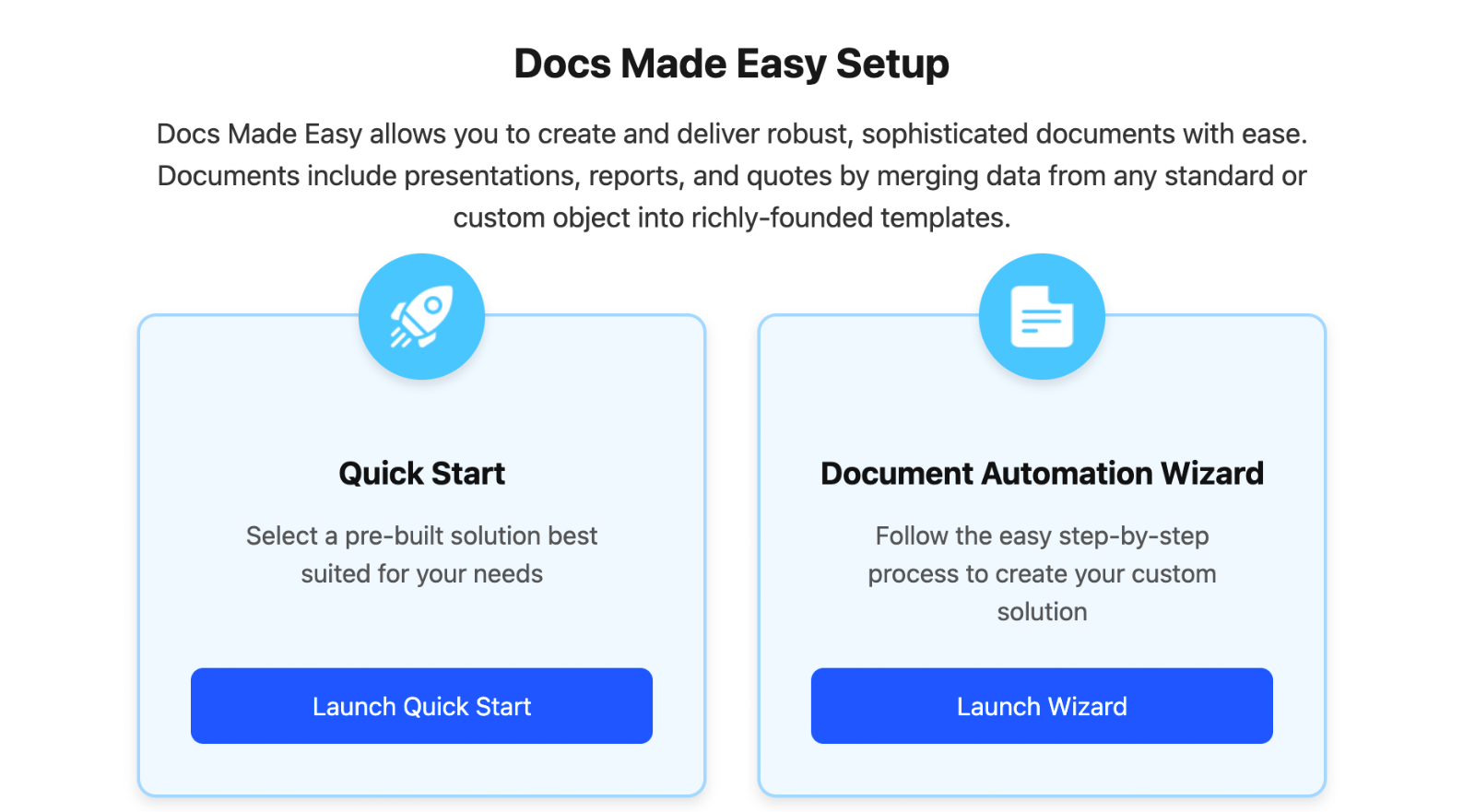
From here, administrators have two options:
- Quick Start, which provides pre-built document examples
- Document Automation Wizard, which allows full customization
Creating a document solution
To create a custom document solution, open the Document Automation Wizard and define a new solution.
In this step, you specify:
- the name of the document button (for example, “Generate Document”)
- The Salesforce object that will provide the data
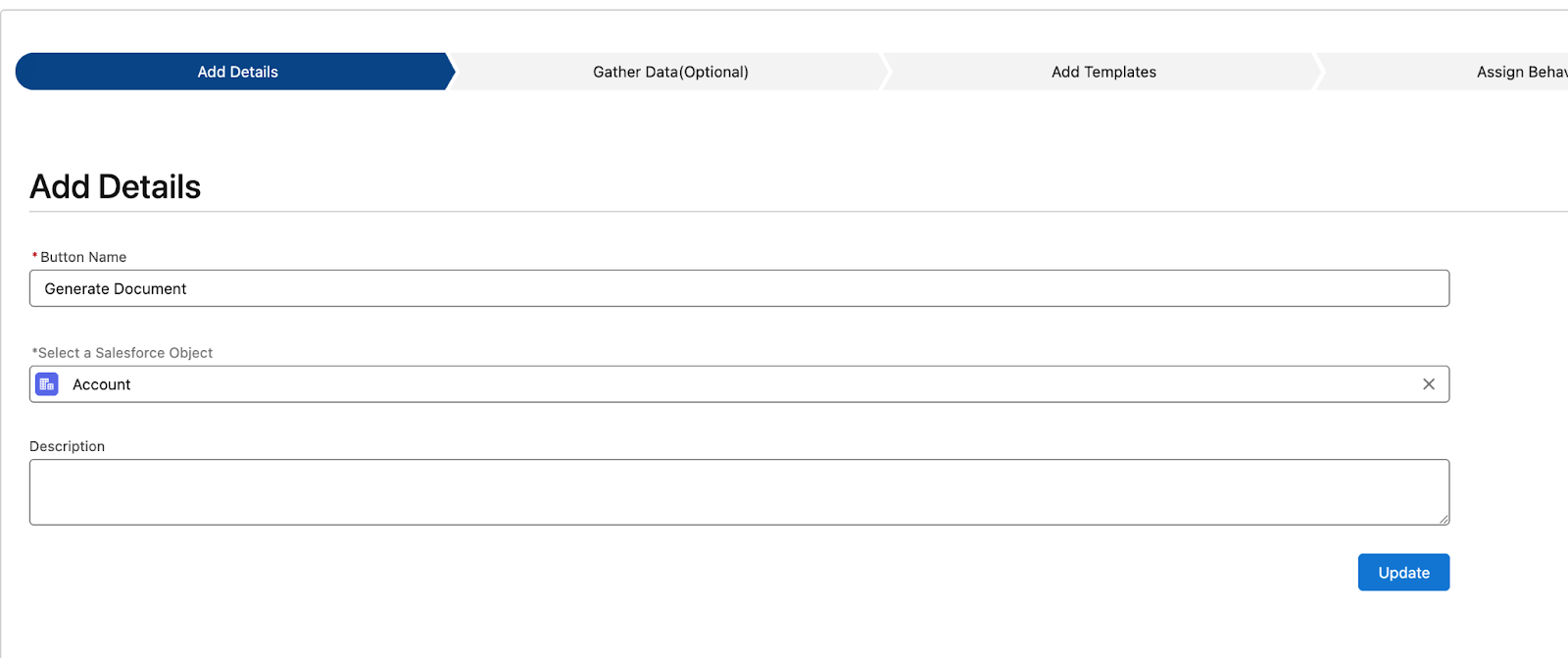
Once created, the wizard moves to the Gather Data step, where you define which Salesforce data should be included in the document.
Selecting Salesforce data with queries
Docs Made Easy retrieves data using queries that define which fields should be included in the generated document.
Administrators can create a query by selecting fields from the primary object and optionally adding filters. For example, a query might retrieve account information, contact details, or opportunity values.
This step ensures that all required Salesforce data will be available when generating the document.
Creating the document template
In this step, you will see three options: Create New Document Template, Create New Document Email Template, and a search option that allows you to use existing templates.
To create a new template, click Create New Document Template. You will then be prompted to enter the required details, such as the template name, and upload your file.
Templates should be prepared beforehand in Microsoft Word or Google Docs and contain the structure and formatting of the final document.
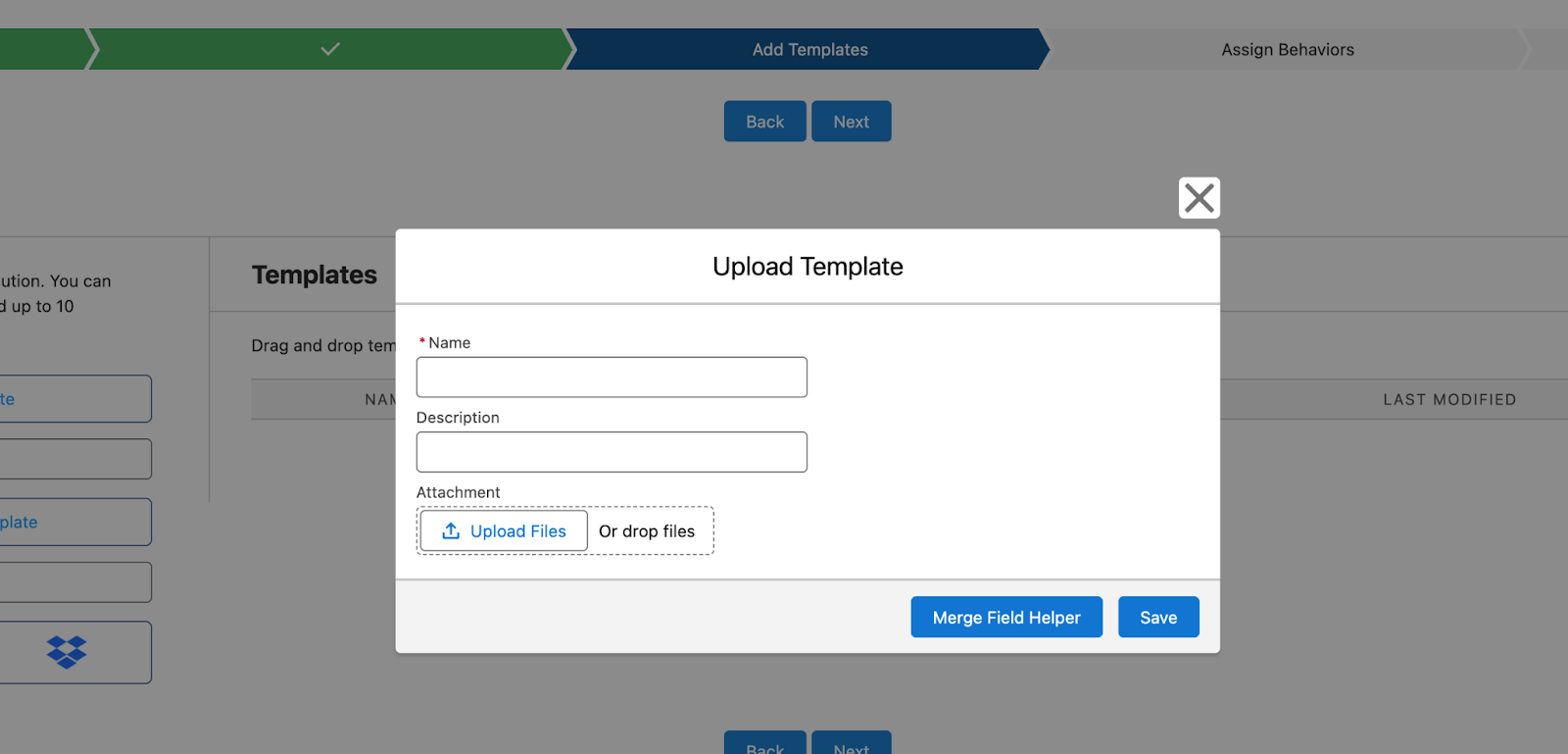
After uploading the template, you will see the Merge Field Helper, which allows you to insert Salesforce field references directly into the template.
These merge fields link the document template to Salesforce data. When a user generates a document from a Salesforce record, the system retrieves the record data and replaces the merge fields in the template with the corresponding values.
The result is a fully generated document that contains information pulled directly from Salesforce. During this step, administrators provide a name for the template and upload the document that will be used for generation.
Configuring document behavior
Docs Made Easy also allows administrators to define how documents should be generated.
For example, you can enable:
- Background Mode - bypasses the composer interface and generates the document immediately.
- Automatic PDF conversion - documents can automatically be generated as PDF files.
- Activity logging - document generation actions can be logged as activities within Salesforce records.
- Available Templates - if multiple templates are associated with the document solution, this setting allows administrators to control which templates are available when generating the document.
- Query Parameters - determine how Salesforce data is retrieved during the document generation process and control which data is included in the final document.
These options help integrate document generation into existing business workflows.
Making document generation available to users
Once the configuration is complete, the final step is adding the document generation button to the Salesforce page layout.
This allows users to generate documents directly from records such as Accounts, Opportunities, or custom objects.
After opening a record, users simply click the Generate Document button. Salesforce retrieves the record data, merges it with the template, and creates the document in your desired format.
The generated document can then be downloaded or shared directly from Salesforce.
Conclusion
By connecting document templates directly to Salesforce records, organizations can significantly reduce manual work and ensure documents always contain accurate data.
Tools such as Docs Made Easy provide a structured way to create templates, retrieve Salesforce data, and generate documents directly within the platform. When combined with Salesforce automation tools like Flow (learn more in the official Salesforce documentation: https://help.salesforce.com/s/articleView?id=sf.flow.htm&type=5), document generation can become a seamless part of everyday business processes. For organizations looking to scale their operations, Salesforce document generation is a key step toward improving efficiency and maintaining consistent, high-quality outputs across teams.





.png)

.png)


