
Lots of companies run both HubSpot and Salesforce, and usually it happens by accident. Marketing picks HubSpot for campaigns, forms, and email. Sales runs deals in Salesforce. Soon, both systems hold the same people and companies, and they start to disagree. Someone fixes a phone number in Salesforce. Someone changes a stage in HubSpot. A week later, nobody knows which system is right.
Connecting the two systems removes most of these problems by keeping customer data synchronized automatically, reducing manual updates, and making it much easier for marketing and sales to work from the same information. HubSpot has a native Salesforce connector that keeps both systems in step, so a change in one shows up in the other, and you stop copying data by hand. This guide explains what the connector does, what you need, how to set it up, and the mistakes to avoid.
Quick answer: HubSpot can be integrated with Salesforce through HubSpot’s native Salesforce connector. The setup usually includes installing the Salesforce app from HubSpot, connecting a dedicated Salesforce user, choosing how contacts should sync, configuring field mappings, and testing the sync before enabling it for the full database.
Why Connect HubSpot and Salesforce
Marketing lives in HubSpot. Sales lives in Salesforce. The problems happen in the gap between them. Connect the two, and you get three things:
- One set of facts. Contacts, companies, and deals stay aligned according to the sync rules you've configured.
- A cleaner lead handoff. A lead moves from HubSpot to Salesforce with its full history attached, not just a name and an email.
- Reporting that ties back to revenue. HubSpot can see which leads became Salesforce deals, so marketing can show what actually worked.
Here is a simple example. Someone fills in a form on your website. HubSpot creates the contact, scores it, and adds it to an email campaign. Once the lead looks ready to buy, it syncs to Salesforce so a salesperson can pick it up. They work the deal in Salesforce, and the stage updates flow back to HubSpot. Marketing sees the lead turn into a closed deal, and nobody has to export a spreadsheet.
Weighing HubSpot against Salesforce’s own marketing tool? Our guide to getting the most out of Pardot forms is a useful comparison.
What the Connector Syncs
The connector works in both directions, and it is built around contacts. It keeps these records in step across both systems:
- HubSpot contacts, which map to Salesforce contacts and leads
- HubSpot companies, which map to Salesforce accounts
- HubSpot deals, which map to Salesforce opportunities
- Supported engagement activities, including logged emails, tasks, and meetings (depending on your configuration and HubSpot subscription).
Because it is built around contacts, a company or deal usually syncs only when a matching contact exists in both systems. The connector handles these standard records well. Custom objects (records that are unique to your business) are only partly supported, and that is the main reason some teams later need more than the native connector. One cleanup note: HubSpot’s old Visualforce package is being retired, so if you still use it, switch to HubSpot Embed.
Before You Start
Get these in place first:
- A HubSpot plan. The Salesforce integration is included with eligible HubSpot subscriptions. Check HubSpot's current licensing before you begin.
- Salesforce access. Your Salesforce edition must support API access. Use a Salesforce System Administrator account to install and configure the integration.
- A connection user. Connect with a dedicated Salesforce user, not someone’s personal login. That user’s permissions decide what the connector can see and change.
- A plan for your fields. Decide which fields should sync, and which system owns each one, before you turn the integration on.
- Clean data. The sync copies whatever you already have, mess included. Tidy up duplicates first. Our guide to managing duplicate records in Salesforce is a good place to start.
How to Set It Up
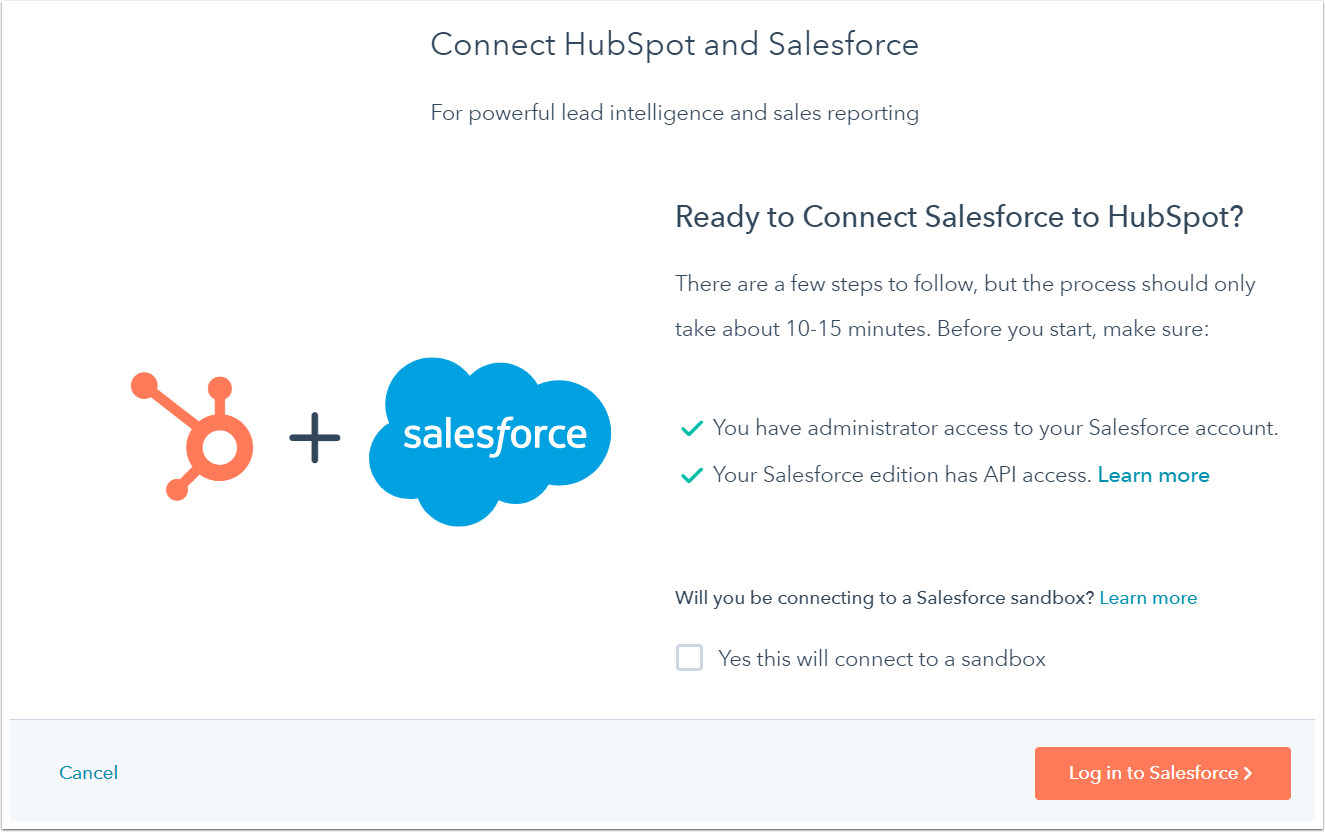
Start from the HubSpot Marketplace, then manage the integration settings from Connected Apps after the installation.
- In HubSpot, open the HubSpot Marketplace, search for Salesforce, and select the Salesforce app.
- Click Install, then start the Salesforce package install. HubSpot sends you over to Salesforce.
- In Salesforce, choose Install for All Users and allow access when asked.
- Back in HubSpot, sign in with your dedicated Salesforce connection user.
- Choose how new records are created. For example, whether a new HubSpot contact becomes a Salesforce lead or a Salesforce contact.
- Set up an inclusion segment to control which HubSpot contacts sync to Salesforce. This keeps low-quality, test, or unqualified contacts from entering Salesforce.
- Set your field mappings, then import your records or let them sync over time.
- Before syncing your full database, test the integration with a small number of records. It's much easier to correct field mappings after ten records than after ten thousand.
HubSpot’s own guide walks through each screen. See installing the HubSpot-Salesforce integration. One quick warning: if your Salesforce org forces IP restrictions on every request, the connector cannot get in because HubSpot’s IP addresses change. Use a network IP range instead.
Field Mapping: Where Most Setups Go Wrong
Connecting the two systems is the easy part. Field mapping is where things break. A field mapping links one HubSpot field to one Salesforce field. For each mapping, you pick a sync rule. HubSpot gives you four:
- Two-way. Both systems update each other, and the most recent change wins.
- Prefer Salesforce unless blank. HubSpot only fills the field in Salesforce when it is empty. If Salesforce already has a value, Salesforce wins.
- Always use Salesforce. Salesforce always wins, and HubSpot never writes to that field.
- Don’t sync. The field is left alone in both systems.
A few simple rules save a lot of pain:
- Decide who owns each field first. If both sides can win, values flip back and forth.
- Match the field types. Free text cannot drop into a number or dropdown field without a clear mapping.
- Map dropdowns and stages by hand. Deal stages and lead statuses need a value-by-value match, not a guess that the labels line up.
You manage all of this and watch for errors in HubSpot’s Salesforce integration settings. For the full list of mapping options, see HubSpot’s guide to mapping HubSpot properties to Salesforce fields.
Common Mistakes to Avoid
- Duplicates. Salesforce splits people into Leads and Contacts; HubSpot does not. Decide whether new marketing leads should become Salesforce Leads or Contacts before enabling the sync. Changing this later often creates duplicate records and reporting issues. Where possible, sync HubSpot contacts to Salesforce Contacts rather than Leads to reduce duplicate companies and simplify reporting.
- Blocked updates. Salesforce validation rules and required fields can reject a sync. Check them before you go live so the sync does not fail in the background.
- API limits. The connector uses Salesforce API calls. The Sync Health dashboard shows failed syncs, mapping errors, API issues, and records that require attention. Keep an eye on it, especially during the first big import.
- Clashing automation. If HubSpot and Salesforce both update the same field automatically, they fight over it. Decide which system owns it.
- Custom objects. Support is limited. If your business runs on custom objects, plan to add more than the native connector.
When the Native Connector May Not Be Enough
The native HubSpot-Salesforce connector works well for standard contacts, companies, deals, leads, accounts, opportunities, and supported activities. For many teams, that is enough.
It may not be enough if your process depends heavily on custom Salesforce objects, complex ownership rules, advanced deduplication logic, strict validation rules, or multi-step data transformations. In those cases, the connector can still be useful, but the integration should be planned more carefully instead of being treated as a simple plug-and-play setup.
FAQ
Can HubSpot sync with Salesforce both ways?
Yes. HubSpot and Salesforce can sync data both ways, depending on the field mapping and sync rules you configure. Some fields can be two-way, while others should be owned by Salesforce or left unsynced.
Should HubSpot contacts sync to Salesforce leads or contacts?
It depends on your sales process. If your team works new marketing inquiries as Salesforce leads, syncing to leads may make sense. If you want cleaner company reporting and fewer duplicate company records, syncing HubSpot contacts to Salesforce contacts is often easier to manage.
Why do HubSpot and Salesforce integrations create duplicates?
Duplicates usually happen when lead/contact rules, company matching, field ownership, or lifecycle processes are not planned before the sync starts. Cleaning the data, using an inclusion segment, and testing the sync with a small group of records help prevent this.
Maintask works in both HubSpot and Salesforce, so we set up new integrations and fix ones that have drifted over time. Whether you're setting up the integration for the first time or untangling duplicate records and broken field mappings, our HubSpot Support+ and Salesforce Support+ teams can help you plan, test, and deploy the integration safely.




.png)

.png)


